WordPress feedback,
right on the page.
Your client points to what needs changing. Live Feedback brings the page, comment and optional screenshot into your agency task board. You decide how to handle it.
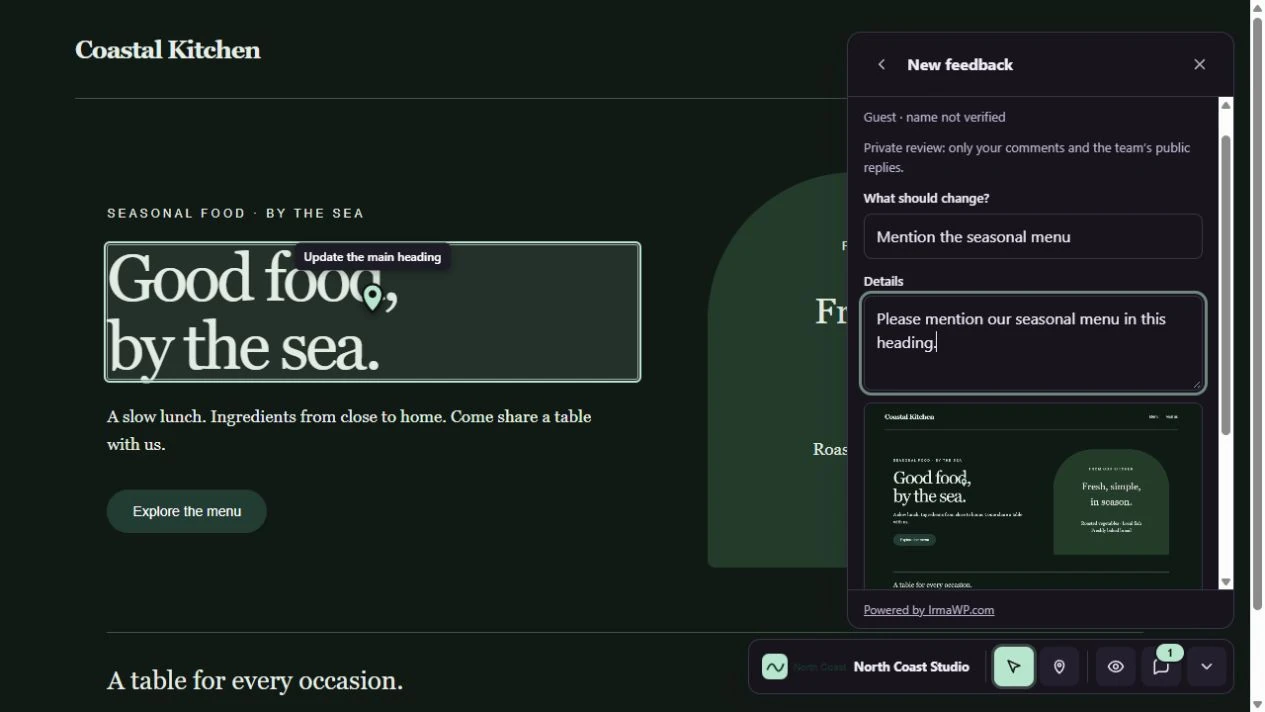
Your client stays on the website. Your team gets the context.
Enable the widget
Open the site’s Live Feedback settings, assign the client and choose who can review. Install through the connected WordPress plugin, or use a verified manual snippet. Review access must be set up for that site.
Mark the element and explain
An authorized reviewer opens the on-site widget, points to the element and writes the request. They can review and redact a screenshot before sending, or send text without an image.
Reply and follow the work
The annotation becomes one task in your agency’s backlog. Public replies appear in the widget and client portal as well as the team workspace. Internal notes stay with your team.
Keep the request beside the thing that needs changing.
These captures come from a local WordPress website using the real IrmaWP widget and service. The agency, website and requests are demo data.
01 / Send and follow
A request your team can find.
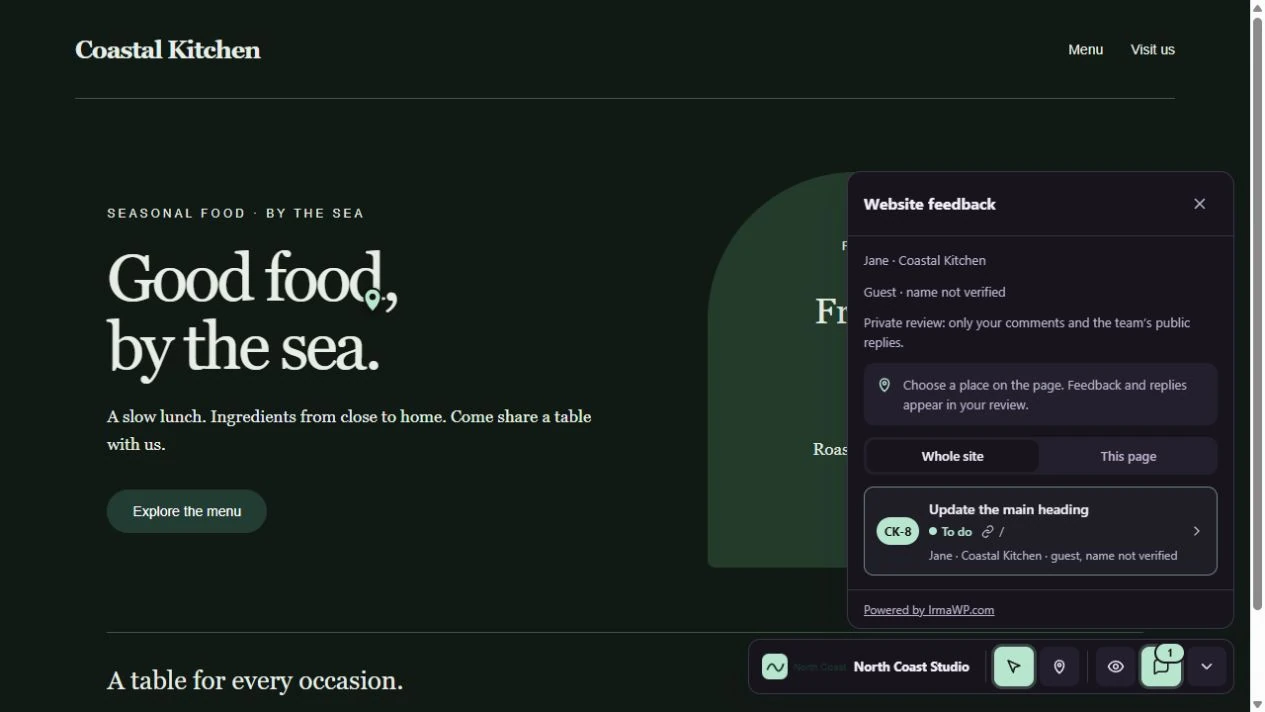
The reviewer can see what they submitted in the widget. The annotation creates an agency task with its page and context. Public replies are shared with the reviewer; internal notes stay with your team.
Sending manual feedback creates a task. Asking Irma to investigate or make a change is a separate action with normal permissions and AI billing.
02 / Share with control
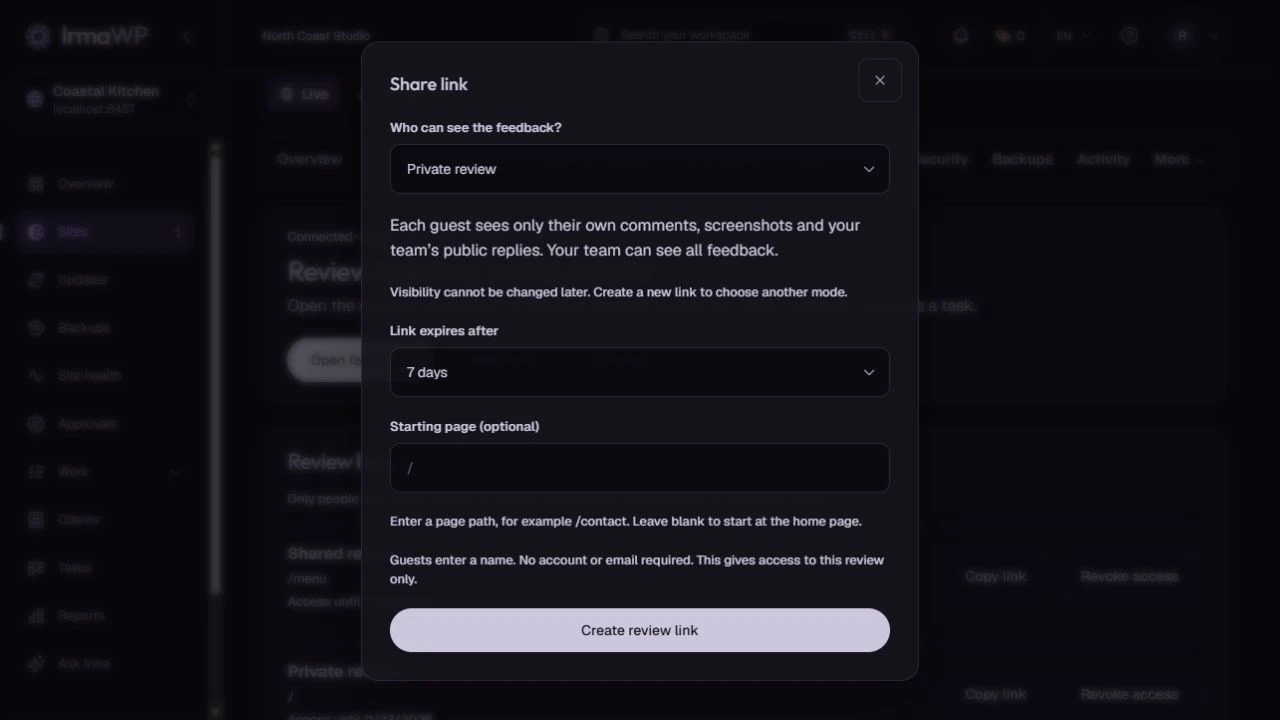
Choose who can see each conversation.
Create a private link so each visitor sees their own comments, or a shared review so people using that link can review together. Choose an expiry of 1, 7 or 30 days and revoke the link when needed.
Review links do not require an IrmaWP account. Email invitations provide email-verified access. A private staging website keeps its own access controls.
Less hunting for “the button near the bottom.”
Review links and WordPress reviewers
Share an expiring link or send an email invitation. You can also enable WordPress reviewers by role or named user. Each method keeps its own scope and access controls.
One conversation across the workflow
A task is the same task wherever it is opened. A reply from the agency reaches the client’s public conversation; there is no separate feedback inbox to copy into your task board.
Screenshots you review before sharing
Captures mask supported input and private elements. Review the image and redact anything else before upload. Images are private, and text-only feedback remains available if a capture fails or storage is full.
Ask Irma when you choose
Receiving a comment does not change the website or spend AI credits. Your agency can explicitly ask Irma to investigate or help with the task. That work follows the usual permissions, approvals and AI billing.
How access, storage and AI work
Which plans include Live Feedback?
Can every visitor see the widget?
Do clients need to create an IrmaWP account?
Does feedback automatically trigger an AI edit?
Where do screenshots count toward storage?
Does this replace the WordPress dashboard request form?
Can I use it on staging?
Does resolving a task delete its screenshot?
Try the next review on the website itself.
Connect a site, enable Live Feedback and invite a reviewer. Start with one real request and follow it through the task board.

