Your WordPress portfolio. One place to start the day.
Keep your current hosting and connect your WordPress sites. Review availability, updates, backups and health together, then open the site or client that needs your attention.
See the portfolio before opening a site
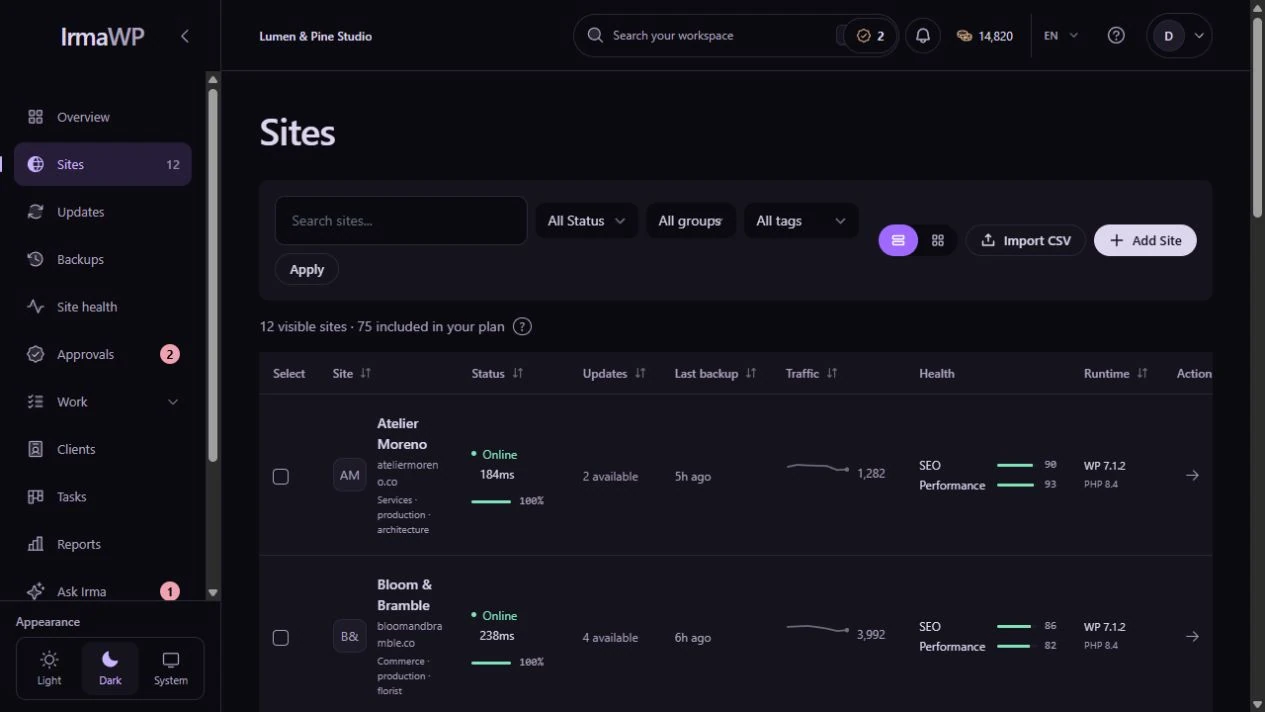
The site table brings status, pending updates, the last backup, traffic and health into one view. Filter by group or tag, switch to cards and open a site’s own tools when you need detail.
Figures come from stored checks and connected data sources. A missing measurement is not a healthy result.
How you use it
Start with the portfolio
Review your connected sites together, then open the site that needs attention. A problem on one client site should not require opening every WordPress dashboard.
Keep access intentional
Owners, admins, developers and other workspace roles have different permissions. Connecting a site does not give every teammate permission to delete it or make destructive changes.
Keep your hosting
IrmaWP manages sites where they already run. Use the connector, SSH or an authenticated REST connection as supported by the task; it is not a hosting migration.
What to know
Does staging use another site allowance?
Does the dashboard run every check when I open it?
Start with your own sites.
Connect a small portfolio, check the tools you need, and choose the plan that fits your team's work.

