Follow each change. See what actually ran.
Give WordPress work an explicit target, status and event history. Review queued changes, inspect completed steps and find the sites that still need attention after a partial failure.
Open the events behind a completed change
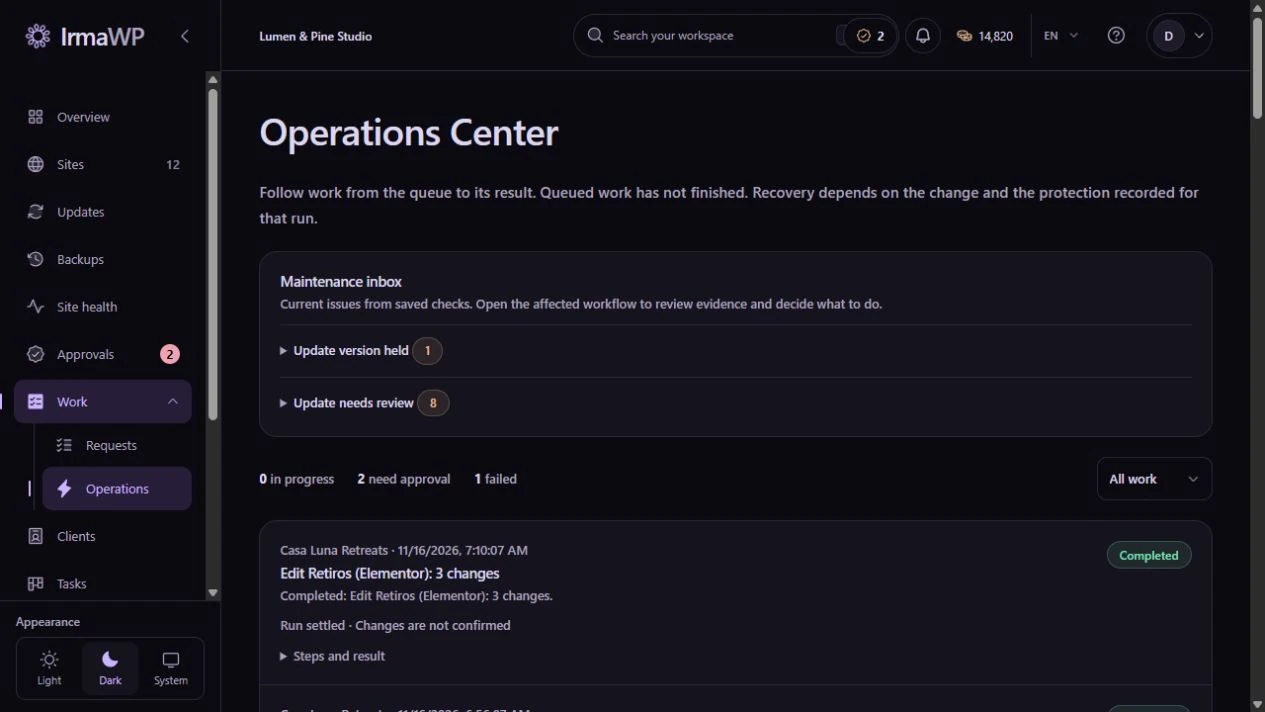
This demo shows two builder edits for the same site, with separate statuses and event logs. Expand an operation to inspect its recorded execution instead of relying only on a chat reply.
Recovery options depend on the operation and the evidence saved for it. A queued action or a required checkpoint is not proof of completion or recovery.
How you use it
See what is queued
A pending instruction is not a completed change. Review queued and running operations without treating the assistant's explanation as the final result.
Inspect a failure
Open the operation's events to see where execution stopped. Across several sites, check the per-site outcomes before retrying work.
Respect the site's rules
Authorization, connection capabilities and execution policies still apply. A workflow may require approval or staging before it can run.
What to know
Does every operation have rollback?
Is this an unrestricted remote shell?
Start with your own sites.
Connect a small portfolio, check the tools you need, and choose the plan that fits your team's work.

