Link the staging site you already host.
Keep production and staging related in the workspace. Use that relationship for supported safe-update and high-risk change workflows without moving your hosting.
How you use it
Connect both installations
Add your production site and a separate staging installation. A copy that points at the same installation is not a safe execution target.
Link the pair
Associate staging with its production site in the same workspace. A linked pair counts as one billable site; a standalone staging site does not get that exemption.
Choose the policy
Set the site's execution policy and use workflows that honor the linked target. Review what actually ran on staging before making a production decision.
Keep the work in view.
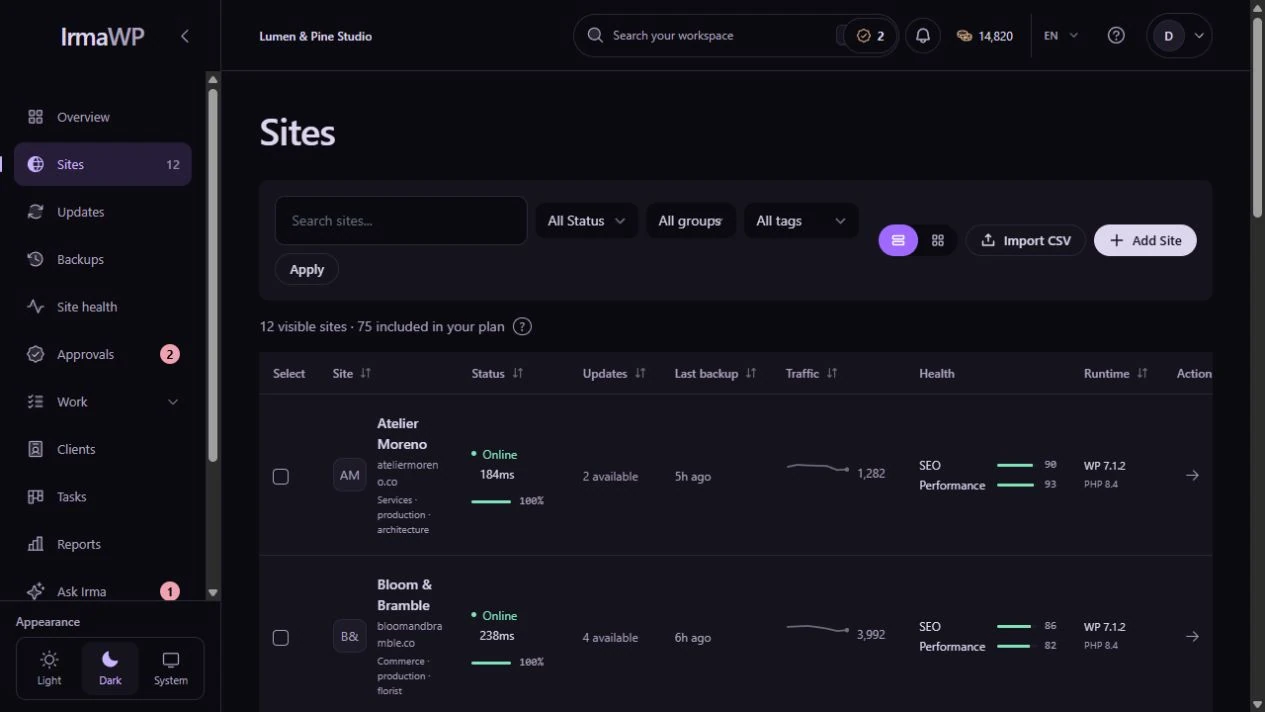
An actual screen from the IrmaWP demo workspace. The workspace includes sample history; available actions depend on your plan, role and site connection.
Bring-your-own WordPress staging
Keep production and staging related in the workspace. Use that relationship for supported safe-update and high-risk change workflows without moving your hosting.
What to know
Does IrmaWP provision or clone staging?
Does a staging link make every change safe?
Start with your own sites.
Connect a small portfolio, check the tools you need, and choose the plan that fits your team's work.

